
More information about editing the 1st and 2nd order pages
Note: The information below applies both for the creation of your DEFAULT pages (in "Edit templates" option) and also when defining a special HTML code for those pages (1st and 2nd order pages) when creating/editing a Package. If you want to use the DEFAULT templates for the 1st and 2nd order pages then check the option "Use default template" you will find when creating/editing a Package.
Through the "Edit templates" option you can set up those DEFAULT templates, so in general, we have:
- The DEFAULT/GLOBAL templates you can edit through the "Edit templates" option, and
- The SPECIFIC templates of the "1st order page" and "2nd order page" that can differ from Package to Package.
Reminder: the - Header and Footer templates inside the "Edit templates" option are used for the pages related with the administration area only.
About the #{tags} inside the order templates
Each #{tag} is a piece of code needed by JVManager. You can edit those templates but you cannot delete those tags. Here are some exceptions:
APPLIES TO ALL TEMPLATES - DO NOT DELETE THE FOLLOWING TAGS:
#{header}
#{footer}
Those tags include internal information needed by JVManager and do not affect your layout.
A. Inside the 1rst Order page
Inside that template notice the html code:
The code above must be placed between the <header></header> section.
The code above must be placed after the <body> tag and is used for crediting an affiliate for the sale - if any exists.
Then note the following tags:
#{header}
#{package_title}
#{instructions}
#{products}
#{email_form}
#{footer}
Remember to keep that hierarchy when editing your page.
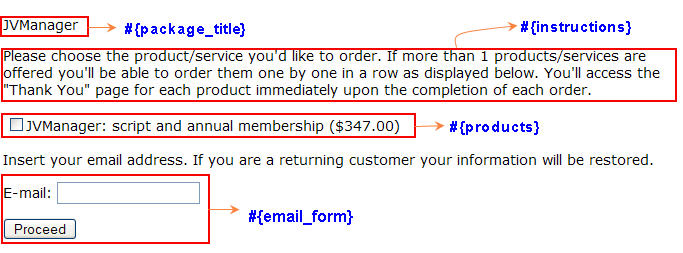
Below you can find an example. Study it in order to understand what section corresponds to each tag:
#{package_title}
You can delete this tag and include your own title for that specific Package.
#{instructions}
This tag inserts this paragraph:
"Please choose the product/service you'd like to order. If more than 1 products/services are offered you'll be able to order them one by one in a row as displayed below. You'll access the "Thank You" page for each product immediately upon the completion of each order."
You can delete it but be sure to include the instructions your customer needs.
#{products}
You can delete this tag ONLY if you offer a GROUPED (locked) Package of Products since the customer cannot select any of the Products. Remember though to list the products included to that Package and inform your customers that they have to pay for each of the Products one by one.
B. Inside the 2nd Order page
Again:
The code above must be placed between the <header></header> section.
The code above must be placed after the <body> tag and is used for crediting an affiliate for the sale - if any exists.
Note the following tags:
#{header}
#{order_info}
#{aff_identity}
#{reseller_identity}
#{billing_info}
#{payment_gate}
#{footer}
Remember to keep that hierarchy when editing your page.
Below you can find an example. Study it in order to understand what section corresponds to each tag:
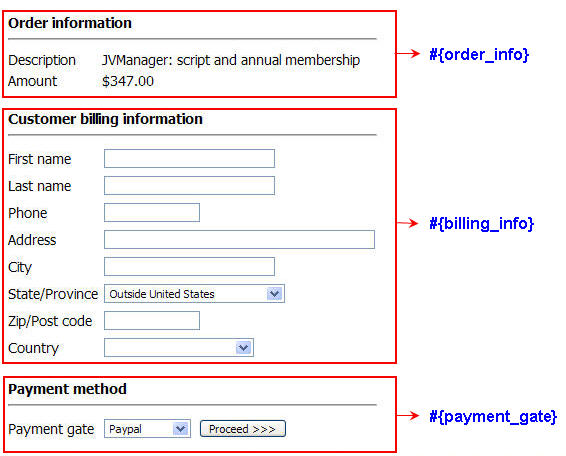
You can delete only the #{order_info} tag and include your information.
The following tags are used by JVManager to display any special information needed for affiliates & resellers, thus remember to include them right below the #{order_info} tag.
#{aff_identity}
#{reseller_identity}